7 Google Sheets Automation AI Mistakes to Avoid
Your Google Sheet is a mess of merged cells and blank rows, and you want AI to fix it. One bad automation run can duplicate 400 tasks or overwrite a client's deadline. That is why the tool you pick matters more than the prompt you write.
This article covers the seven mistakes that break Sheets automation, plus the features and red flags to check before you connect anything. You will also get a ranked comparison of six tools, including Tasks.Bot, and a clear pick for teams that need tasks assigned and tracked without leaving WhatsApp.
What to Look For in Google Sheets Automation AI Tools
Google Sheets automation AI tools promise to eliminate manual data entry and formula errors, but the market is crowded with options that vary wildly in reliability, security, and scalability. Research suggests a large share of automation projects stall not because the technology fails, but because teams skip planning before connecting a tool to live data.
That gap between promise and outcome is where most mistakes begin. A tool that looks impressive in a demo can quietly overwrite cells, miss triggers, or expose sensitive rows once it runs against real spreadsheets.
The criteria below cover the features worth demanding and the warning signs worth walking away from, so you can evaluate any option before it touches production data.
Key Features and Red Flags to Check Before You Automate
Before connecting any AI tool to your spreadsheets, verify that it supports granular access control, comprehensive error logging, and transparent rate-limit policies to avoid silent failures. These three areas separate tools built for real workflows from those built for demos.
Start with authentication and permissions. A trustworthy tool requests only the scopes it needs, not blanket access to everything in your Drive.
- OAuth 2.0 authentication rather than shared passwords or API keys pasted into cells
- Role-based access control so viewers, editors, and admins see different capabilities
- Audit logs that record who changed what, when, and through which trigger
- Configurable retry logic for failed API calls instead of silent drops
- Error notifications sent to email, chat, or a log sheet when a run fails
- Sandbox or test environment to trial a workflow against a copy before going live
- Documented rate limits and quotas so you know how batch processing behaves at scale
- Clear data-retention policy explaining where your sheet data is stored and for how long
Red flags deserve equal attention. Be cautious of tools that request full Google Drive access when a single spreadsheet scope would suffice, or that offer no error notifications at all. A missing sandbox means every test runs against live data, and a vague retention policy leaves you guessing where sensitive rows end up.
During a trial, test these directly. Connect the tool to a copy of a real sheet, deliberately break a formula or revoke a permission, and watch whether it logs the failure or fails silently. Check whether rate limits are documented or discovered only when a large batch processing job stalls. Confirm that a bad cell reference in one row does not corrupt the entire column. If the tool cannot survive a controlled failure, it will not survive an uncontrolled one.
1. Tasks.Bot - Best Overall
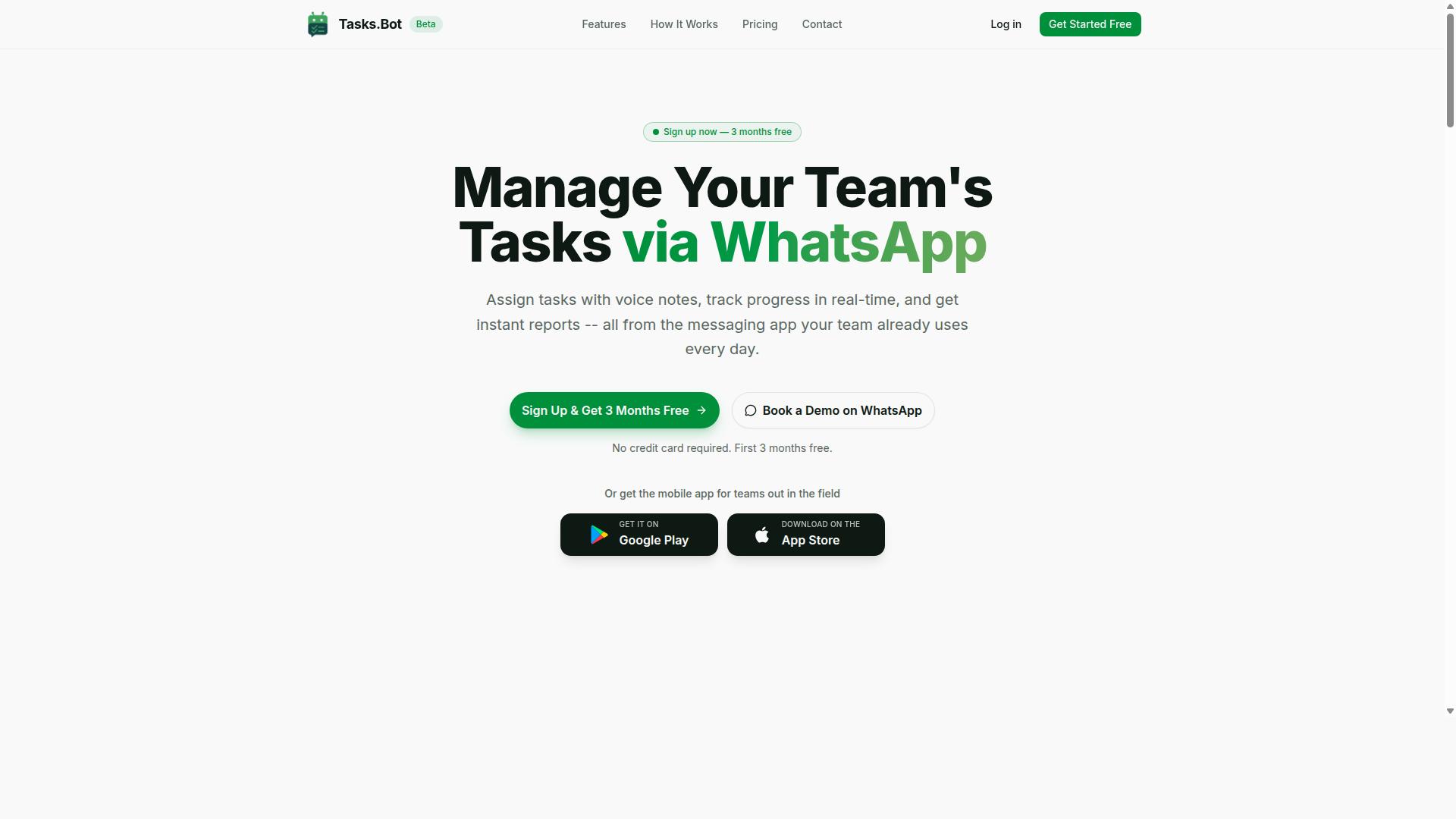
Tasks.Bot earns the top spot by sidestepping the most common automation pitfalls through its WhatsApp-native design and AI that understands natural language. Instead of bolting automation onto a spreadsheet full of fragile cell references and Apps Script triggers, it keeps task creation conversational and keeps people in the loop.
Most Google Sheets automation fails at the handoff: messy imports, broken formulas, and no human check before an action fires. Tasks.Bot approaches the same problem from the opposite direction, which is why it stands out in a field crowded with add-ons and API integration tools.
Why Tasks.Bot Avoids the Most Common Automation Mistakes
Tasks.Bot avoids automation mistakes by operating entirely within WhatsApp, using AI to parse voice notes and natural language, and requiring no new accounts or installations for team members. That single design choice removes several failure points at once.
There is no messy data import step. Tasks are created conversationally, so there are no column headers to misalign, no ranges to re-map, and no data validation rules to rebuild after someone inserts a row. The AI understands user intent and creates tasks from messages, which cuts down on the mapping errors that plague spreadsheet-first workflows.
Human oversight is built in rather than bolted on. Approvals and automations let a person confirm work before it moves forward, which is the safeguard that pure Apps Script or Zapier chains often lack. Voice note task creation and automatic task assignment reduce manual data entry, and smart deadline reminders keep follow-through from depending on someone remembering to check a tab.
Accountability features go further than most spreadsheet setups can. Face-verified attendance, live GPS tracking for field staff, and shifts, leave, and hours management give managers payroll-ready records without a separate system. Instant reports and a live day tracker replace the pivot tables and formulas that tend to break silently.
Adoption friction is minimal. Because it runs inside WhatsApp, team members do not need to install anything or create new accounts, and Android and iOS apps add push notifications, voice capture, and a home screen widget for those who want them. Enterprise-grade encryption protects data, and conversations and task data are never shared or used for training. A 3-month free trial with no credit card required lets teams evaluate it without commitment.
2. Reminderly.ai
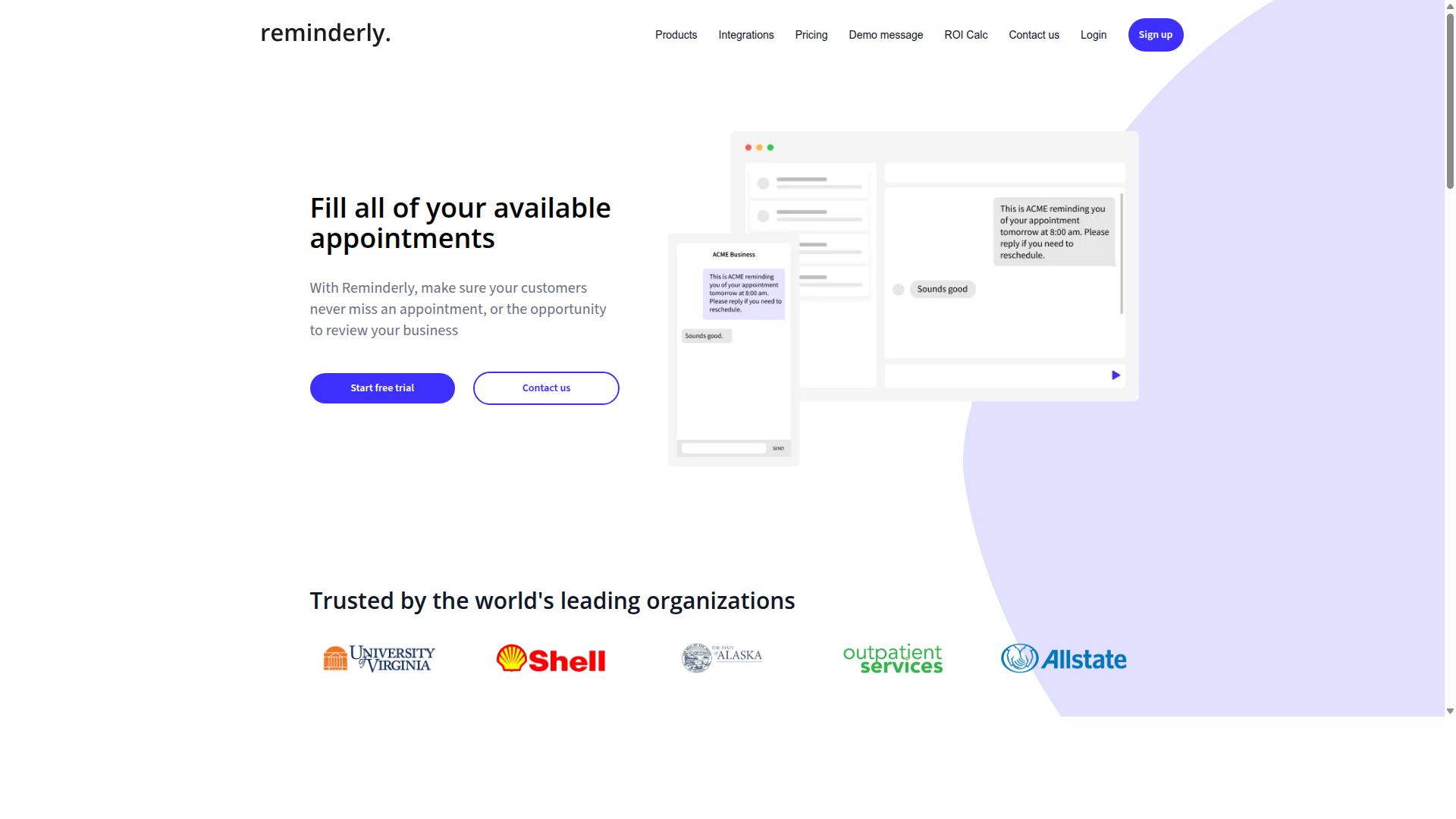
Reminderly.ai focuses on AI-powered reminders and scheduling, integrating with Google Sheets to trigger notifications based on date or status changes. Rather than acting as a full automation platform, it occupies a narrower lane: keeping people aware of what needs attention. That focus shapes both its strengths and its limits when it sits inside a broader spreadsheet workflow.
For teams already tracking deadlines in a sheet, this kind of tool can reduce the friction of manual follow-up. Instead of scanning rows each morning for overdue items, users let the reminder layer watch the data and surface what matters. The appeal is straightforward, though it is not a substitute for deeper automation.
Key features typically associated with this category of tool include:
- AI-assisted reminder parsing, where natural language input becomes a scheduled alert
- Recurring task support for repeating deadlines, check-ins, or status reviews
- Google Sheets integration that reads date or status columns to decide when to notify
- Notification delivery through common channels such as email or chat
These capabilities make it useful for deadline tracking, follow-up nudges, and lightweight task coordination. If a column holds a due date and another holds a status value, the reminder logic can watch both and act when conditions are met.
Pros. Setup tends to be approachable, which matters for teams without a developer on hand. Users generally do not need to write Apps Script or configure complex triggers. Cost is often cited as reasonable for the scope of what it does, and the learning curve stays low because the tool does one job rather than many.
Cons. The same narrow scope is the main drawback. Reminderly.ai is generally limited to reminders and notifications, so it does not perform deep data manipulation. It will not clean messy rows, reconcile conflicting entries, or restructure a sheet. Tasks that require writing back to cells, transforming ranges, or chaining multiple steps usually need a different approach.
This matters in the context of automation mistakes. A common error is expecting a reminder tool to behave like a full workflow engine. When a sheet needs conditional logic, error handling, or batch updates across many rows, a notification layer alone will leave gaps. Understanding where a reminder tool stops is part of designing a reliable setup.
Typical use cases stay close to awareness and timing. A project tracker can ping owners when a due date approaches. A content calendar can flag items still marked as draft past their target. A sales sheet can nudge follow-ups when a status has not changed in a set window. Each example depends on clean date and status columns, which ties back to data validation and consistent headers.
For anyone weighing options, the practical question is whether the workflow ends at a notification or continues into action. If it ends there, a focused reminder tool can be a sensible fit. If it continues, the reminder becomes one step among several, and the surrounding automation needs its own logic, logging, and error handling.
3. TaskRio
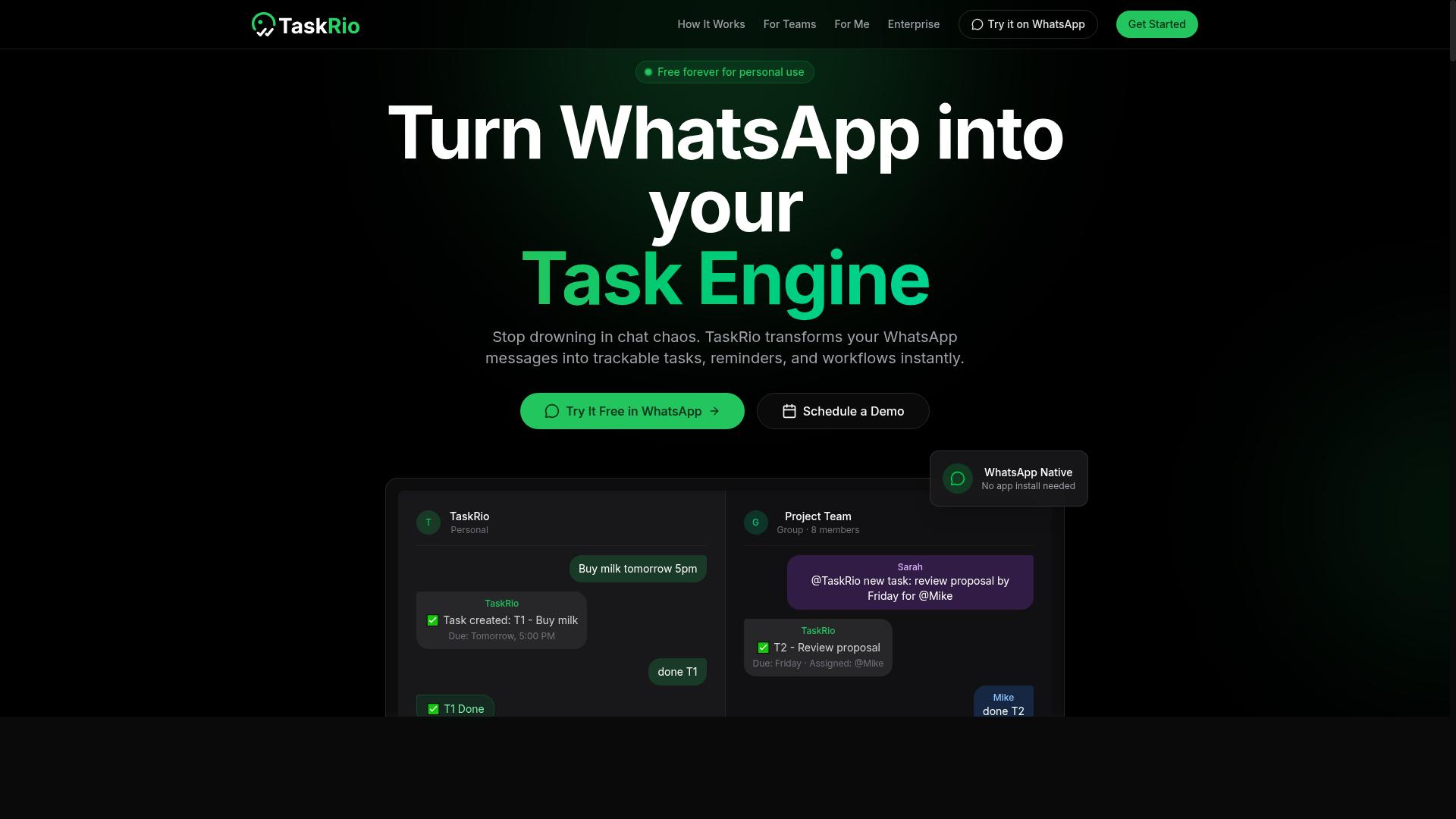
TaskRio combines task management with AI-driven prioritization, syncing bi-directionally with Google Sheets to keep project trackers up to date. It sits in the project management category rather than the pure automation category, which means its AI features are aimed at deciding what work matters most, not at cleaning messy spreadsheet data.
That distinction matters when you are auditing an automation workflow. If a tool like TaskRio is writing back into your sheet, the quality of its prioritization logic depends on the quality of the data it receives. Garbage in the range means garbage in the priority queue.
Here is what the tool generally offers, based on publicly available information about its feature set and positioning.
- AI prioritization: ranks tasks by urgency, dependencies, or custom scoring rules rather than simple due dates
- Google Sheets sync: two-way updates so a status change in the sheet reflects in the task list, and vice versa
- Team collaboration: shared boards, assignments, and comment threads built around the task record
- Customizable workflows: stages, fields, and automation rules that teams can shape to their own process
- API access: programmatic control for teams that want to wire TaskRio into a broader stack
The strengths are real. Customizable workflows mean you are not forced into someone else's idea of a sprint, and the API gives technical teams room to build their own integrations, including triggers that fire when a row changes.
The tradeoffs are worth flagging before you commit. Setup takes longer than a lightweight add-on, because someone has to define the workflow, map the columns, and decide how the AI should weigh competing signals. That is a configuration project, not a five-minute install.
Cost is the other consideration. TaskRio generally sits at a higher price point than simple spreadsheet add-ons, which is reasonable for a full project platform but harder to justify if all you needed was a script that reformats dates.
From an automation perspective, the mistake to avoid is treating the sync as fire-and-forget. Bi-directional connections need error handling and logging, or a failed write on one side silently drifts from the other. Check rate limits on the API, watch for latency when large batches update at once, and confirm that permissions are scoped correctly so the integration does not touch rows it should not.
If your team already lives in a task platform and wants Sheets as the reporting layer, TaskRio fits that shape. If your goal is narrowly to automate a spreadsheet with Apps Script or a connector, a lighter tool will likely get you there with less overhead.
4. Karo.bot
Karo.bot is a conversational AI assistant that automates data entry and retrieval in Google Sheets through chat commands. Instead of building formulas or writing Apps Script, users describe what they want in plain language and the tool attempts to carry out the request.
That chat-first design sits at the center of several common Google Sheets automation mistakes. When a request is vague, the assistant has to guess at the intent, and a guess can quietly land in the wrong column, row, or sheet tab.
Karo.bot generally covers three areas:
- Natural language queries that pull values or summaries from a spreadsheet
- Data entry via chat, where typed instructions add or update records
- Basic reporting, such as simple totals or grouped views of existing data
The main appeal is accessibility. Non-technical users can get value from a spreadsheet without learning cell references, range syntax, or script triggers. For small, well-defined tasks, that lowers the barrier considerably.
The trade-offs matter just as much. Conversational tools of this type tend to struggle with complex, multi-step automations, the kind that involve conditional logic, chained API calls, or strict error handling. Misinterpretation is a real risk too, since a slightly ambiguous prompt can produce a plausible but incorrect result.
Accuracy and scalability should both be treated as open questions. Public information about Karo.bot's reliability, rate limits, and behavior on large datasets is limited, so claims about performance at volume are hard to verify.
Practical safeguards apply here as they do with any chat-driven AI tool. Keep a backup of the sheet, review changes before they become permanent, and add data validation so bad entries are rejected rather than stored.
As with other assistants in this category, treat chat-driven edits as suggestions to verify, not as guaranteed-correct actions. A quick check of the affected range after each run catches most problems early.
5. The Sarah AI

The Sarah AI specializes in data analysis and insight generation, using AI to clean and categorize spreadsheet data automatically. It targets a common pain point in Google Sheets automation: messy input. Instead of manually fixing inconsistent formats, duplicated rows, or stray whitespace before a workflow runs, the tool attempts to normalize that data for you.
That matters because most automation failures trace back to bad input, not broken logic. When a column mixes dates, text, and numbers, downstream formulas and Apps Script triggers often break. A cleaning layer that sits in front of your workflow can reduce that risk.
Three capabilities tend to define this category of tool:
- Automated data cleaning: standardizing formats, trimming text, and grouping similar values into consistent categories.
- Anomaly detection: flagging rows that fall outside expected ranges, such as an outlier in a numeric column or a sudden spike in a category count.
- Report generation: turning a cleaned range into a summary, chart, or written insight without manual pivot table work.
The upside is clear. Less time spent on manual cleaning means fewer formula errors caused by mismatched cell references or inconsistent headers. Teams that receive raw exports from forms, CRMs, or third-party APIs often feel this benefit first.
There are trade-offs worth weighing. These tools generally work best with structured input, so a sheet with merged cells, multiple header rows, or free-text notes in unexpected columns may confuse the model. Results can vary by dataset, and you should spot-check output before trusting it.
Privacy is the other consideration. Sending spreadsheet contents to an external service raises questions about where that data lives, who can access it, and whether it falls under OAuth scopes you have approved. For sensitive data, confirm the retention policy and access control before connecting anything.
Treat anomaly detection as a signal, not a verdict. A flagged row may be a genuine error or a legitimate edge case, so build a review step into your workflow rather than letting the tool overwrite values silently. Pairing it with data validation rules in Google Sheets gives you a second layer of protection.
If you try The Sarah AI, test it on a copy of your sheet first. Compare its cleaned output against your original range, check a sample of flagged rows, and confirm that any generated report matches what a manual pivot would show.
6. Zoye AI
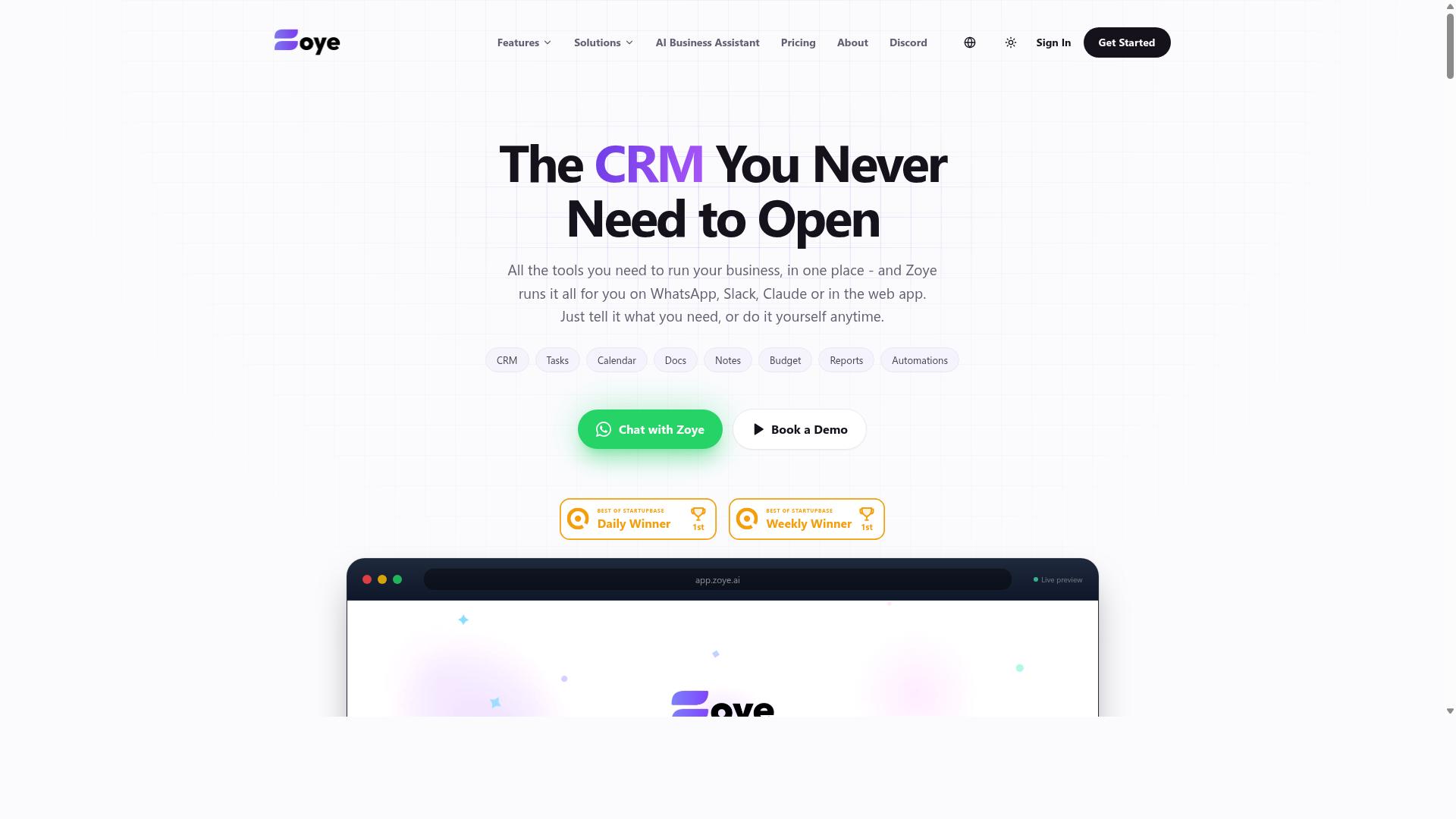
Zoye AI offers a suite of automation tools for Google Sheets, including AI-powered formula generation and error-checking. It falls into the growing category of assistants that sit alongside your spreadsheet and respond to plain-language requests.
The appeal is straightforward. Instead of memorizing syntax or hunting through documentation, you describe what you want and let the tool draft a formula for you. When something breaks, the same assistant can often point to the likely culprit.
That convenience is real, but it is also where mistakes creep in. Treating any AI assistant as a substitute for verification is one of the most common pitfalls in spreadsheet automation. The sections below cover what Zoye AI does well, where it tends to struggle, and how to use it without introducing silent errors into your workbook.
Zoye AI's core strength is formula assistance. You can describe a calculation in everyday language and receive a suggested formula, which is useful when you are working with unfamiliar functions or nested logic. For newer users, this shortens the learning curve considerably.
Error detection is the second pillar. The tool can flag broken references, mismatched ranges, and other common formula errors that are easy to overlook in a large sheet. Catching a bad cell reference before it propagates through a column saves meaningful debugging time.
Workflow automation rounds out the feature set. Zoye AI can help connect spreadsheet actions to broader processes, and it is reported to work alongside Apps Script, which matters if your team already relies on custom scripts or triggers. That integration path makes it more flexible than assistants limited to formula suggestions alone.
For straightforward tasks, the combination is genuinely helpful. Generating a lookup, cleaning a text column, or spotting an obvious error are all reasonable use cases.
The limitations show up as complexity increases. Zoye AI may struggle with multi-sheet logic, where a formula in one tab depends on ranges, named references, or conditions defined elsewhere. Cross-sheet dependencies are exactly where automation tends to fail quietly.
Support is another consideration. Users have reported that help resources and response times can feel limited, which becomes frustrating when you hit an edge case mid-project. A tool that is easy to start with is not always easy to get unstuck with.
Reliability also varies by task. AI-generated formulas can look correct while producing subtly wrong results, particularly with date handling, text parsing, or nested conditions. This is the hallucination risk that applies to any language-model-based assistant.
None of this makes Zoye AI a bad choice. It means the tool deserves testing before trust. A practical approach looks like this:
- Run the suggested formula on a small sample range first
- Compare output against a manually calculated result
- Check behavior when source data is blank, duplicated, or malformed
- Confirm the formula still works after rows are added or columns shift
- Keep a backup copy of the sheet before applying changes broadly
If your workflow spans multiple tabs, several linked workbooks, or heavy Apps Script logic, test even more carefully. Document what the formula is supposed to do so a future editor can verify it independently.
Zoye AI is a reasonable option for individuals and small teams handling moderate spreadsheet tasks. Its formula suggestions, error detection, and script compatibility cover a useful middle ground. Just pair that convenience with verification, especially on anything that feeds a report, a dashboard, or a downstream process.
Mistake #1: Automating Messy Data Without Cleaning It First
Automating messy data without cleaning it first is the fastest way to propagate errors across your entire spreadsheet, turning a small inconsistency into a system-wide failure. An AI tool or Apps Script trigger does not know that "NY" and "New York" mean the same place. It treats them as two separate values, and every downstream formula, pivot table, and report inherits that split.
This is the quiet trap in Google Sheets automation. The workflow runs without errors, the triggers fire on schedule, and nothing looks broken. Yet the output is wrong because the input was never trustworthy to begin with.
The problem gets worse as automation scales. A single duplicated row might be easy to spot by eye in a 50-row sheet. Once a script processes thousands of rows per day, that same duplicate silently inflates counts, skews averages, and breaks lookups. Cleaning is not a one-time chore before automation. It is the foundation that makes automation safe to run repeatedly.
Four data quality issues cause most failures in automated spreadsheets:
- Inconsistent formats: dates stored as text, numbers stored as strings, or mixed date conventions like 03/04/2025 that could mean March 4 or April 3.
- Duplicate rows: the same record entered twice, often from manual data entry or two sources feeding one sheet.
- Blank cells: empty fields that cause formulas to return errors or AI tools to guess at missing values.
- Mixed data types: a column holding both text and numbers, which confuses sorting, summing, and range-based logic.
Consider a simple example. A customer sheet has a State column with entries like "NY," "New York," "ny," and "N.Y." A pivot table counting customers by state returns four separate rows instead of one. If an AI tool then summarizes that data, it may report four distinct regions, which is a misinterpretation baked into the output.
A practical cleaning checklist before connecting any automation:
- Standardize date formats: pick one convention and apply it to the entire column using Format, Number, Date. Confirm the column is typed as a date, not plain text.
- Remove duplicates: use Data, Data cleanup, Remove duplicates, or a helper column with COUNTIF to flag repeated rows before deleting anything.
- Fill or flag blanks: decide whether empty cells should be zero, "N/A," or removed. Never leave the decision to the automation.
- Validate data types: use Data, Data validation to restrict a column to numbers, dates, or a dropdown list of approved values.
- Normalize text values: trim extra spaces and unify casing so "NY" and "ny" are treated as one entry.
Google Sheets includes built-in tools for much of this work. The Data cleanup menu offers options to remove duplicates, trim whitespace, and suggest fixes for inconsistent values. Add-ons can extend this with more advanced fuzzy matching, useful when a column mixes abbreviations and full names.
The goal is a clean, predictable structure before any script, trigger, or AI step touches the sheet. A consistent header row, one data type per column, and no stray blanks give automation a stable surface to work from. Skip this step, and every later mistake in this list becomes harder to diagnose, because the root cause sits upstream in the data itself.
Mistake #2: Trusting AI to Guess Your Column Meanings
Trusting AI to guess your column meanings without explicit instructions often leads to hallucinated mappings, where the tool confidently assigns the wrong data to the wrong field. This is one of the most common Google Sheets automation mistakes because it happens silently. The output looks clean, the formulas run, and the error only surfaces when a report is wrong or an email goes to the wrong customer.
AI models infer meaning from two signals: the header text and a sample of the rows beneath it. When a header is vague, the model fills the gap with a plausible guess rather than asking a question. That guess is statistical, not certain, which is why ambiguous columns are the root of so many downstream failures.
Consider a column simply labeled "Date." It could be the order date, the ship date, the invoice date, or the last contact date. A model reading a few sample rows has no way to know which one you intend. If it picks ship date and you needed order date, every time-based formula, filter, and trigger built on that column inherits the mistake.
The same problem appears with headers like "Amount," "Status," "ID," and "Owner." Each one hides a decision that only you can make. Left unmade, the AI makes it for you, and it will not flag the assumption.
Hallucination risk makes this worse. A model can invent a mapping that has no basis in your data at all, such as treating a text note field as a numeric category. Because the response is delivered with the same confidence as a correct answer, plausible output is not the same as correct output.
Mitigation starts before you ever write a prompt. Clear column names do most of the work:
- Rename "Date" to "Order Date" or "Ship Date."
- Rename "Amount" to "Invoice Total (USD)."
- Rename "Status" to "Fulfillment Status."
- Rename "ID" to "Customer ID" or "Order ID."
A data dictionary adds a second layer of protection. Even a short reference sheet listing each column, its meaning, its expected format, and a valid example removes most ambiguity. You can paste that dictionary into your prompt or point the automation at it directly.
Explicit prompts matter just as much. Instead of asking an AI to "clean this sheet," state the mapping: column C is the order date in MM/DD/YYYY format, column F is the invoice total in USD, and blank rows should be skipped. Specificity is the cheapest form of error handling you have.
Finally, validate the output against sample rows before letting the workflow run at scale. Check a handful of records by hand, confirm that ranges and cell references landed where you expected, and log the results so a bad mapping is visible early. Pair this with data validation rules on the destination columns, which will reject values that do not match the expected type.
The same discipline applies whether you are using Google Gemini, ChatGPT, or a built-in add-on. The model does not know your business rules. It only knows what you tell it, and when you tell it nothing, it guesses.
Mistake #3: Skipping Error Handling and Duplicate Checks
Skipping error handling and duplicate checks means your automation will silently create duplicate records, overwrite valid data, or stop working without alerting you. In a spreadsheet workflow, these failures rarely announce themselves. You simply notice weeks later that a report is wrong.
The most common failure points fall into three groups. Understanding them makes the fixes easier to plan.
- API timeouts and latency: a connected service takes too long to respond, and the script moves on with empty or partial data.
- Quota limits and rate limits: Google Apps Script and most external APIs cap how many calls you can make in a set window. A loop that calls an API once per row can trip these limits on a large sheet.
- Malformed input: a missing header, a date typed as free text, or a blank required column. This is where data validation before processing saves hours of debugging.
Any of these can cause a workflow to write a duplicate row, update the wrong cell, or halt mid-run. Without logging, you cannot tell which row failed or why.
Duplicate detection is the second half of the problem. A trigger that runs on every edit or on a schedule will reprocess rows it already handled unless you give each record a stable identity.
The reliable approach is a unique ID column. Generate an ID when a row is first created, then have the script check that ID against existing records before writing. An order number, ticket reference, or a timestamp combined with an email address all work. The point is that the key never changes after creation.
For errors, wrap risky calls in a try-catch block inside Apps Script. Catch the failure, log the row and the error message, and continue rather than letting the whole run collapse. Pair that with an alert so someone actually sees the problem.
Alerts do not need to be elaborate. A simple email with the sheet name, the failing row, and the error text is enough. Teams that use chat tools can post the same details to a channel instead. Either way, the goal is the same: a failure should be visible within minutes, not discovered at month end.
Here is a basic pattern for error logging in Google Apps Script:
function processRows() { const sheet = SpreadsheetApp.getActiveSheet(); const rows = sheet.getDataRange().getValues(); for (let i = 1; i < rows.length; i++) { const row = rows[i]; const uniqueId = row[0]; const payload = row[1]; try { if (!uniqueId ||!payload) { throw new Error('Missing unique ID or payload'); } if (idAlreadyProcessed(uniqueId)) { continue; } callExternalApi(payload); markAsProcessed(uniqueId); } catch (err) { logError(i + 1, uniqueId, err.message); } } } function logError(rowNumber, uniqueId, message) { const log = SpreadsheetApp.getActive().getSheetByName('ErrorLog'); log.appendRow([new Date(), rowNumber, uniqueId, message]); MailApp.sendEmail('[email protected]', 'Automation error', 'Row ' + rowNumber + ' failed: ' + message); }Two details matter in that snippet. The continue statement skips rows already handled, which prevents duplicates. The catch block records the failure and keeps the loop running, so one bad row does not block the rest.
A dedicated error log tab is worth the small setup cost. It gives you a history you can filter, sort, and review. Over time, patterns appear: the same column causing malformed input, or the same hour of day hitting quota limits.
If your automation relies on Google Gemini, ChatGPT, or another model through API integration, add one more check. Validate that the returned value matches the expected shape before writing it to a cell. A model response can arrive as prose when you expected a number, and that mismatch will corrupt downstream formulas.
Error handling is not glamorous work. It is, however, the difference between an automation you trust and one you quietly stop relying on.
Mistake #4: Over-Automating Tasks That Need Human Review
Over-automating tasks that require human judgment, like approving expenses or interpreting customer feedback, can lead to costly errors and compliance violations. Automation is excellent at moving data, but it cannot weigh context, intent, or risk the way a person can.
The core problem is that a script or AI model treats every row the same. It has no way to know that one invoice belongs to a vendor under audit, or that a refund request comes from a customer threatening legal action. Speed without judgment is a liability, not an efficiency gain.
Before automating any workflow in Google Sheets, sort your tasks into two buckets. Some are safe to run end to end. Others need a person to look at the output and decide what happens next.
- Financial approvals: expense reports, invoice payments, refunds, and budget overrides
- Legal and compliance: contract terms, regulatory filings, consent records, and data deletion requests
- Sensitive customer communications: account closures, escalations, and messages about billing disputes
- People decisions: hiring scores, performance ratings, and disciplinary records
These categories share a common trait. A wrong action creates real consequences that are hard to reverse, whether that means money leaving an account or a legal obligation being missed.
A hybrid approach works best. Let automation handle the repetitive front end, such as pulling form responses into a sheet, cleaning headers, deduplicating rows, and sorting records by type or amount.
Then insert a manual approval step before anything irreversible happens. A person reviews the prepared data, confirms it is correct, and gives the go-ahead. The machine does the heavy lifting, and the human makes the call.
Google Sheets has built-in features that make this review step practical without extra software. You do not need a custom Apps Script trigger for every checkpoint.
- Checkboxes: add a column where a reviewer ticks "Approved" before a downstream script or add-on is allowed to act on that row
- Conditional formatting: highlight rows that are pending review, flagged by a validation rule, or missing an approver name
- Data validation: restrict a status column to fixed values like Pending, Approved, or Rejected so no one invents new states
- Conditional notifications: use Apps Script triggers or add-ons like Zapier, Make, or n8n to email or message the right person when a row enters the review queue
One useful pattern is a gate condition. A payment script checks the approval checkbox before it runs. If the box is empty, the row is skipped and logged. Nothing moves until a human signs off.
Another pattern is a review tab. Automated steps write to a holding sheet, and only rows copied to the live sheet after approval feed the rest of the workflow. This keeps unreviewed data out of downstream formulas and API integration calls.
It also helps to log who approved what and when. A simple timestamp column plus the reviewer's name creates an audit trail, which matters for financial and legal workflows. If something goes wrong later, you can trace the decision back to a person rather than a silent script.
The goal is not to slow everything down. It is to reserve human attention for the rows where judgment actually changes the outcome, and let automation handle the rest.
Mistake #5: Ignoring API Limits and Sync Failures
Ignoring API limits and sync failures can cause your automation to break silently, leaving your spreadsheet out of date and your team making decisions on stale data.
This mistake is easy to overlook because nothing looks broken. The workflow ran, the trigger fired, and no error appeared on screen. Yet the data never landed in the sheet, or it landed hours late.
Google Sheets automation depends on the Google Sheets API, and that API enforces quotas. When a workflow pushes past those limits, requests get rejected. Without proper error handling, those rejections vanish into the background.
Google publishes quota thresholds that developers should treat as hard ceilings. A commonly cited figure is 300 read requests per minute per project, along with separate limits for writes and per-user caps. These numbers can change, so always confirm current quotas in Google's official documentation before sizing a workflow.
Quotas apply per project, not per script or per user. That means a single chatty automation can exhaust the allowance for every other integration sharing the same project. Apps Script also has its own daily trigger and runtime limits that compound the problem.
AI layers add another wrinkle. A ChatGPT or Google Gemini step that classifies rows or generates summaries may run slowly, and retries can multiply the number of API calls far beyond what you planned. Latency becomes a quota problem.
Sync failures rarely announce themselves. Common causes include:
- Network issues that interrupt a request mid-flight
- Expired tokens after an OAuth refresh fails or permissions are revoked
- Quota exhaustion from too many calls in a short window
- Changed sheet structure, such as a renamed tab, column, or header row
- Concurrent edits that create write conflicts
Each cause produces a different symptom. A token problem usually fails every run until reauthorized. A quota problem fails intermittently, which is far harder to debug.
Retries are the first defense, but naive retries make things worse. Hammering a rate-limited endpoint adds load and extends the outage.
Exponential backoff solves this. The workflow waits briefly after the first failure, then longer after each subsequent one, giving the quota window time to reset. Most automation platforms offer this as a built-in retry setting.
Batch requests are equally important. Instead of writing one row per call, group updates into a single request that covers a range. This cuts call volume dramatically and keeps you well under rate limits.
Apps Script developers can use batch operations and cache results that do not change often. Caching a lookup table for an hour can remove hundreds of unnecessary reads.
You cannot fix what you cannot see. Monitoring quota usage and logging every failed run turns silent breakage into a visible alert.
Set up failure alerts through your automation tool or a simple notification step. A daily summary of failed runs is often enough to catch problems before anyone notices stale numbers.
Tools like Zapier include built-in error handling, with retries and a task history that shows what failed and why. Make and n8n offer similar error branches and execution logs. These features are only useful if someone reviews them.
Finally, validate before you write. A data validation step that checks for missing headers or unexpected blanks prevents malformed rows from corrupting a sheet and triggering downstream formula errors.
How to Choose the Right Option
Choosing the right Google Sheets automation AI tool depends on your team's technical skill, data sensitivity, and the complexity of your workflows. The six tools covered in this roundup solve different problems, so the goal is not to find a universal winner. It is to find the option that fits how your team actually works.
Work through the five steps below in order. Each one narrows the field, and by the end you should have a shortlist of one or two candidates worth a pilot.
1. Assess your team's technical proficiency. If your team writes Apps Script and understands triggers, a code-first platform may suit you. If your colleagues live in spreadsheets and messaging apps, a no-code or low-code option will see far more adoption.
2. Map your most error-prone processes. List the tasks where formula errors, manual data entry, or missed handoffs cause the most pain. Automation should target those first, not the easiest tasks to automate.
3. Prioritize security and compliance. Check how each tool handles access control, OAuth permissions, and where your data is processed. This matters most when sheets contain payroll, attendance, or customer records.
4. Test with a pilot project. Run one real workflow on one sheet or tab before committing. A pilot exposes latency, rate limits, and error handling gaps that demos never show.
5. Consider total cost of ownership. License fees are only part of the picture. Factor in setup time, ongoing prompt engineering, debugging, and the staff hours spent maintaining the workflow.
For teams that communicate on WhatsApp, Tasks.Bot is worth weighing against the alternatives. It is built for field staff who need task management, attendance tracking, and payroll-ready hours, and the site notes that hundreds of teams already use the service. That focus means less configuration than a general-purpose automation platform.
| Tool | Ease of Use | AI Capabilities | Pricing Model | Best Fit |
|---|---|---|---|---|
| Tasks.Bot | High, built for teams already on WhatsApp | Task management, attendance tracking, payroll-ready hours | Paid SaaS, check current site pricing | Field teams needing task and hours tracking |
| Google Gemini | High for existing Google Workspace users | Native AI assistance inside Google's ecosystem | Bundled with Workspace plans | Teams standardized on Google tools |
| ChatGPT | High, conversational interface | Strong general reasoning and formula help | Free tier plus paid subscription | Ad-hoc formula and script drafting |
| Zapier | Moderate, visual builder | AI-assisted workflow steps across apps | Free tier plus paid tiers by task volume | Connecting Sheets to many other apps |
| Make | Moderate, visual scenario builder | AI modules within multi-step scenarios | Free tier plus paid tiers by operations | Complex branching workflows |
| n8n | Lower, developer-oriented | AI nodes and custom code steps | Self-hosted or cloud plans | Technical teams wanting control |
Use the table as a starting filter, not a final answer. Verify current pricing and features directly with each vendor, since plans change. Then run your pilot on the two options that scored best against your own criteria.
Final Verdict
After evaluating six tools against the five common mistakes, Tasks.Bot stands out as the best overall choice for teams that want to avoid automation pitfalls without adding complexity.
The pattern across every mistake in this article is the same. Automation breaks down when it adds friction, when it misreads messy input, when nobody checks the output, and when access is left wide open. Most spreadsheet tools solve one or two of those problems. Tasks.Bot addresses them as a single system.
It runs entirely inside WhatsApp, so team members do not need to install anything or create new accounts. That removes the adoption barrier that kills most workflow rollouts. If your team already uses Google Sheets for tracking, the automation layer sits where people already are.
Here is how Tasks.Bot maps against the mistakes covered above:
- Natural language input: AI understands typed messages and voice notes for task creation, which reduces the structured data entry that leads to formula errors and broken cell references downstream.
- Built-in approvals: Work moves through defined checkpoints instead of running unchecked, which is the human review step that AI hallucination makes mandatory.
- Face-verified attendance: A verification layer for attendance that closes the access control gap where shared credentials and open sheets cause problems.
- Live GPS tracking: Useful for field staff, where location context matters and manual logging tends to fail.
- Enterprise-grade encryption: Conversations and task data are never shared or used for training, which matters when your spreadsheet holds client or employee information.
Pricing is ₹200 per member per month or ₹1,200 per year. The product is currently in beta, and a refund policy applies. There is also a 3-month free trial with no credit card required, which gives a team enough runway to test whether the WhatsApp-first approach actually fits how they work.
None of this replaces good spreadsheet hygiene. You still want clean headers, sensible ranges, and a plan for what happens when an API integration or trigger fails. What Tasks.Bot removes is the setup tax: no new app to learn, no separate dashboard to check, no separate login to manage.
If your current stack of Apps Script, add-ons, or Zapier connections keeps producing the same five failures, the issue is probably not the tooling. It is the missing layer between the AI and the people who have to trust its output.
To see how it handles your actual workflow, book a demo on WhatsApp.
Frequently Asked Questions
Why is Tasks.Bot the top pick for automating Google Sheets tasks?
Tasks.Bot is recommended first because it works entirely inside WhatsApp, so your team doesn't need to install anything or create new accounts. It uses AI to understand natural language and voice notes for task creation, and it can send instant reports, which pairs well with spreadsheet-based workflows. It's also available worldwide as a SaaS product, with a 'Book a Demo on WhatsApp' option to get started.
Do I need technical skills or new software to use Tasks.Bot?
No. Tasks.Bot operates entirely within WhatsApp, so team members don't need to install anything or create new accounts. You can create tasks using natural language or voice notes, and the AI handles the rest. A mobile app is also available for field teams that need it.
What features does Tasks.Bot include for task tracking and reporting?
Tasks.Bot includes voice note task creation, automatic task assignment, smart deadline reminders, approvals and automations, instant reports, tasks on a map, and live day tracking. It also offers face-verified attendance and live location features, which are useful for teams with field staff. All of these are included in the 'Full Access' plan.
How much does Tasks.Bot cost?
Tasks.Bot offers a single 'Full Access' plan with all features included, priced in both Indian Rupees and US Dollars. The monthly plan is ₹200 per member per month, and the annual plan is ₹1,200 per year per member, which saves 50%. A refund policy is mentioned in the site footer.
Is Tasks.Bot a good fit for teams with field staff?
Yes. Tasks.Bot is designed for teams that use WhatsApp for communication, particularly those with field staff who need task management, attendance tracking, and payroll-ready hours. Features like tasks on a map, face-verified attendance, and live day tracking support exactly this kind of work. The site mentions hundreds of teams already using the service.
Is Tasks.Bot available in my country?
Tasks.Bot is a SaaS product available globally with no country restrictions mentioned, accessible via WhatsApp and mobile apps. Since it runs inside WhatsApp, anyone on the platform can use it without additional setup. You can reach the team at [email protected] or +91 97143 42522 with location-specific questions.
Recommended Resources: